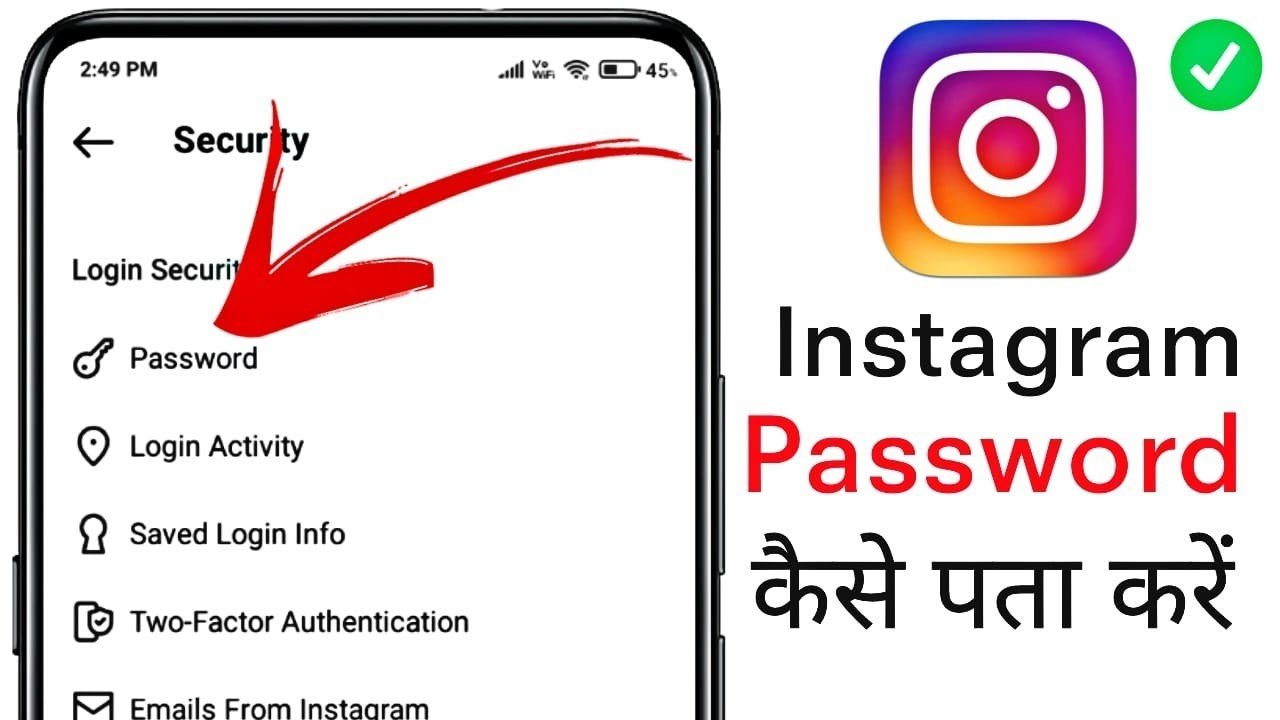

Hi, i forgot my instagram password and searching ways for how to find instagram password, so you can get easy ways to see your instagram paasword here.
If you have forgotten your Instagram password or are unable to sign in to your account, there is no need to worry. You may be able to find your saved Instagram password without resetting it.
Alternatively, you can reset your password using your email address or phone number. Let’s explore how to find your Instagram password and regain access to your account.
How to Find Instagram Password Without Resetting It
You can find your Instagram password without resetting it, provided that you have saved it in Google Password Manager. If you have saved your password in Google, you can check it by following these steps.
Step #1: On your Android device, you can check your saved passwords through your Google Account. To view your password, open your device’s Settings and tap Google.
Step #2: Next, tap the Manage Your Google Account option.
Step #3: Next, go to the Security tab. Then tap Password Manager to view your saved passwords.
Step #4: If you have saved your Instagram password in Google Password Manager, scroll down until you find the Instagram option and tap it. You will see the accounts and passwords you have saved in Google Password Manager.
Step #5: To view your Instagram password, tap the Instagram option. Then, verify your identity using your device PIN or fingerprint.
Step #6: To view your Instagram account password, tap the eye icon below your username. Your Instagram password will then be visible on the screen.
How to Find Your Instagram Password on a Laptop
You can find your Instagram password on a laptop or desktop computer through your browser. You can use Google Chrome for this purpose. However, you can only view your Instagram password if you previously logged in to Instagram on your computer and saved your login credentials.
Step #1: First, launch the Chrome browser on your laptop or PC. Click the three vertical dots next to the address bar.
Step #2: From the menu, go to Settings.
Step #3: Now, go to the Autofill and Passwords tab and click Google Password Manager.
Step #4: Next, scroll down and look for the instagram.com option. Click on it and select your username.
Step #5: You may be asked to verify your identity by scanning your fingerprint or entering your PC’s PIN or password.
Step #6: To view your Instagram account password, click the eye icon.
You will then be able to see your Instagram account password on the screen. By following the methods described above, you can find your saved Instagram password without resetting your account password.